Help
Secure File Drop lets you send PDF and Word documents that contain private information, like closing documents, IDs and payoff letters, without attaching them to an email. You upload the files, copy a link, and paste the link into your own email to the recipient. Before they can download anything, we email them a one-time code to prove the link reached the right person.
Sharing documents
-
Sign in with your usual work account. If you work for more than one company, choose which
one you're sending from. To change it later, click your name at the top right and choose Switch company.
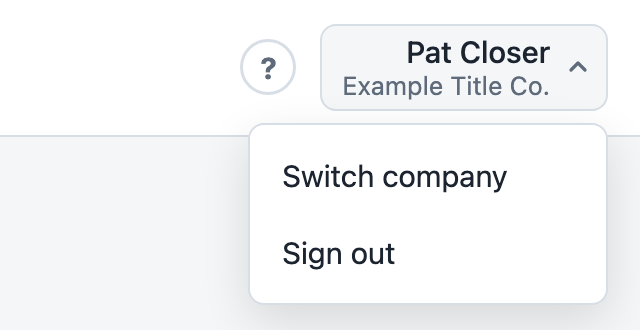
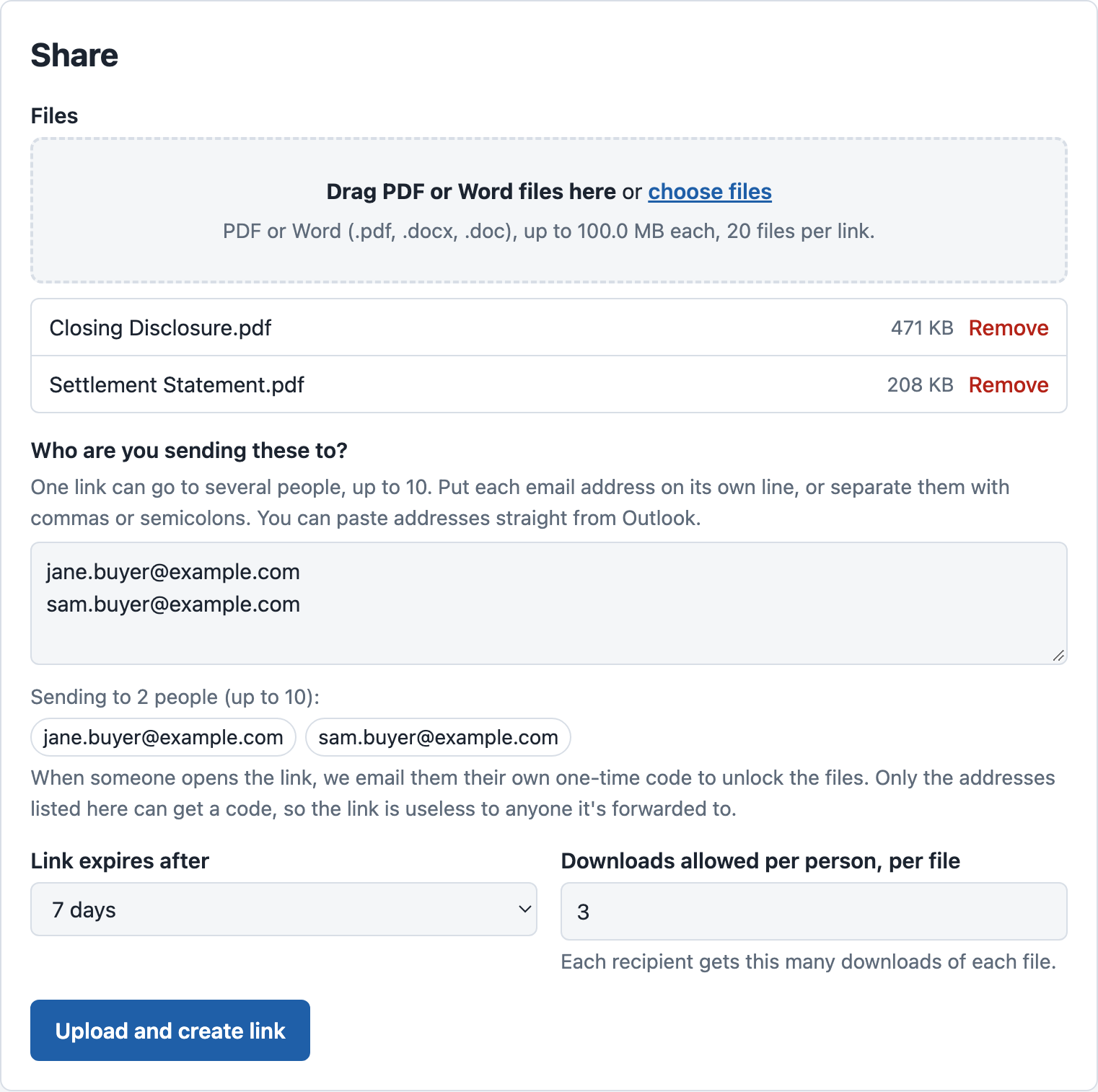
Click your name to switch company or sign out. The ? opens this help page. - Add your files. Drag them onto the box, or click choose files. You can add 20 files to one link: PDF or Word (.pdf, .docx, .doc), up to 100 MB each. To take a file off the list before sending, click Remove.
- Enter who you're sending to. One link can go to up to 10 people. Put each email address on its own line, or separate them with commas or semicolons. You can also copy the To line from an Outlook email and paste it in. The form lists the addresses it found and points out any that aren't valid. Each person gets their own one-time code at their own address, so make sure every address is correct. Only the people listed here can open the files, even if the link is forwarded.
- Choose how long the link lasts (7 days unless you change it, up to 30 days), and optionally how many times each person can download each file. With a limit of 1 and three recipients, each of the three can download every file once.
- Click Upload and create link. Your files upload and are checked for viruses, which usually takes under a minute. The status shows Checking files, then Active.
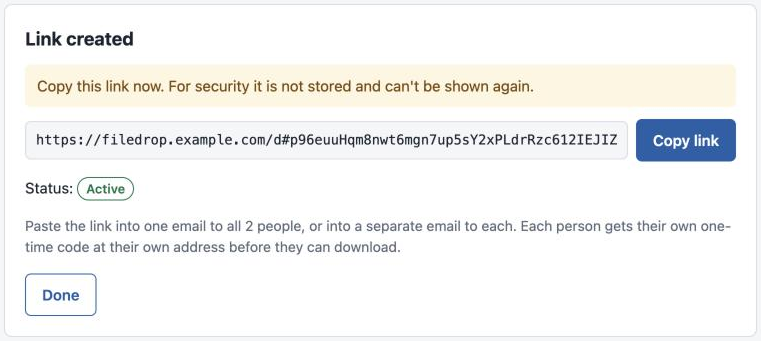
- Copy the link and paste it into your email to the recipient. If you listed several people, you can send everyone the same link in one email, or paste it into a separate email to each. The link is only shown once. We don't keep a copy, for security. If you lose it, revoke that share and create a new one.
Tip: you don't need to describe the documents in your email. Something like "Here's the secure link to your closing documents" is enough.
What your recipient sees
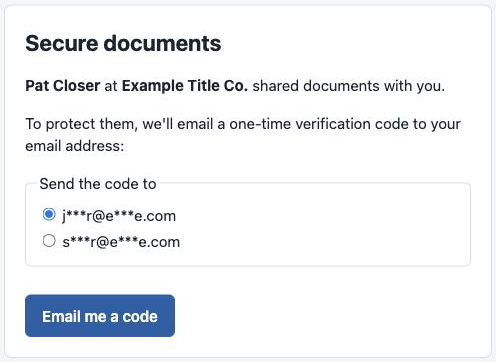
- They click your link and see your name and company, plus a button to Email me a code.
- We email them a 6-digit code from your company's address. The code works for 10 minutes. If it doesn't arrive, they can ask for a new one.
- They enter the code and see the list of files, each with a Download button, plus Download all.
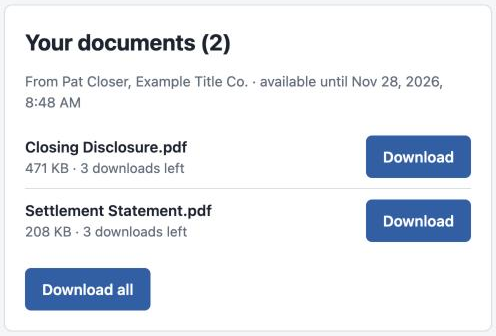
They don't need an account or a password, and they never see your other shares.
Tracking and revoking
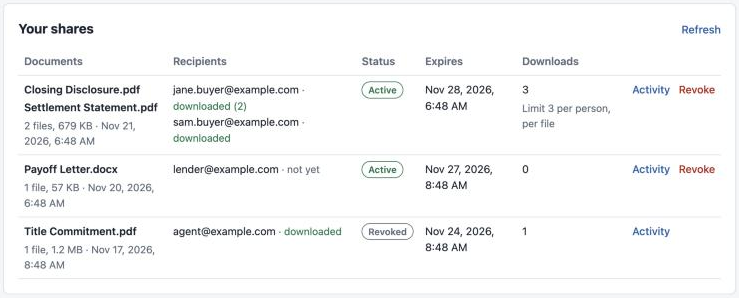
- How do I know they got it?
- The first time each recipient downloads, we email you. Under Recipients, each address shows whether that person has downloaded yet. The Downloads column on your list shows the total.
- What does each status mean?
-
- Uploading / Checking files: still being uploaded or virus-checked. The link won't open yet.
- Active: ready. The recipient can request a code and download.
- Rejected: a file failed the check (a virus, or not a real PDF or Word file). Hover over the status to see which file. Nothing was sent; fix the file and share again.
- Expired: the link's time ran out.
- Revoked: you turned the link off.
- Can I see who opened it?
- Click Activity next to a share. You'll see when codes were sent, wrong codes entered, and files downloaded, along with the address and internet location (IP) of each action.
- I sent it to the wrong person, or need to take it back.
- Click Revoke. The link stops working right away and the files are deleted. If they've already downloaded, revoking can't undo that, so let your manager know.
- How long are files kept?
- Files are deleted automatically after 30 days, whatever the link's expiry. The activity record is kept for seven years.
Requesting files from customers
When you need documents from a customer, such as a photo of their ID or a signed agreement, send them an upload link instead of asking them to attach files to an email.
-
Open the Request tab, enter the customer's email address (up to
10 people), and optionally a note saying what you need. The note is
only shown after they enter their code.
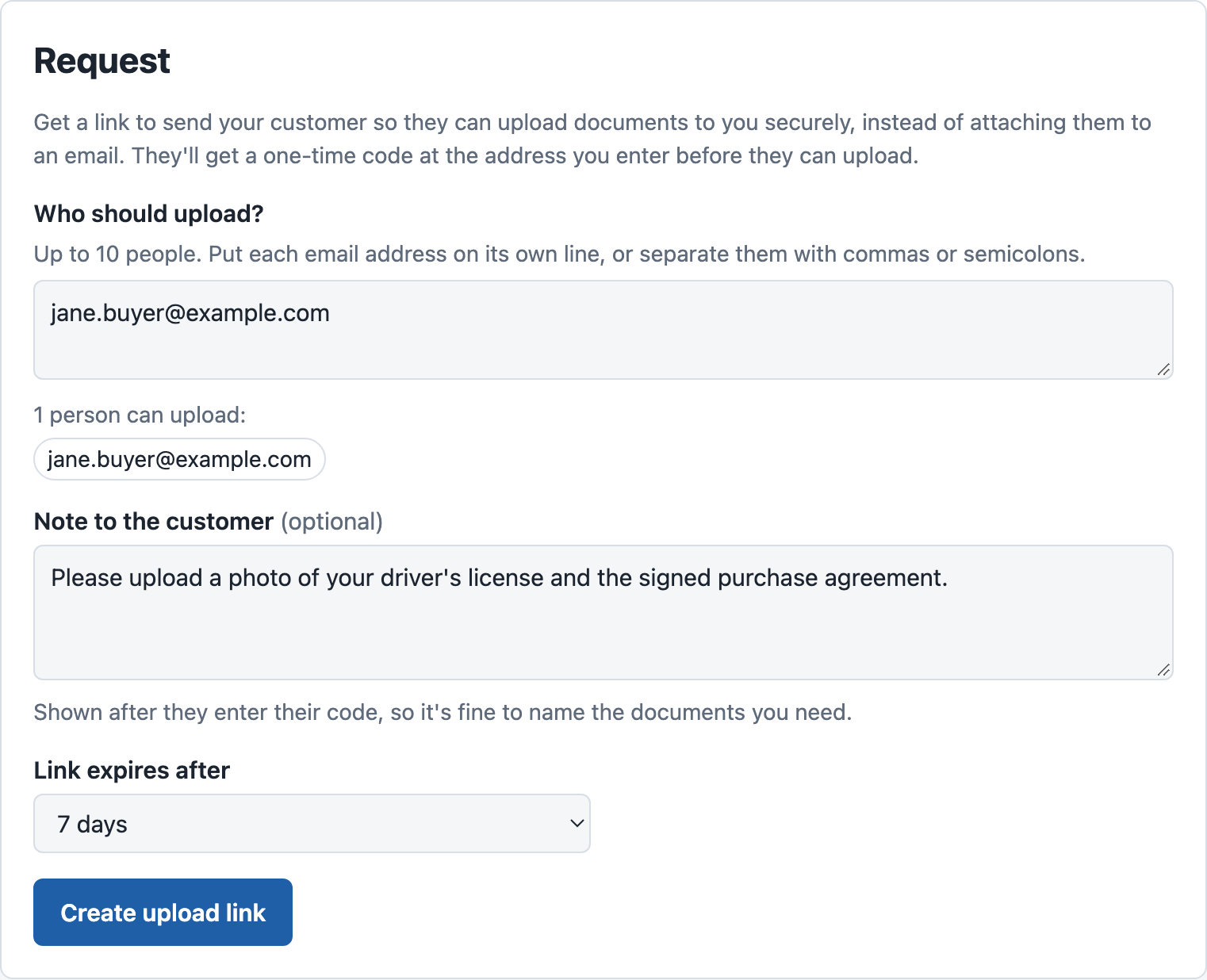
Ask for exactly what you need in the note. - Choose how long the link stays open, click Create upload link, and paste the link into your email. Like share links, it's shown once.
-
Your customer opens the link, gets a one-time code at the address you entered, and uploads PDF, Word, JPG or
PNG files. Only the people you listed can upload, even if the link is forwarded.
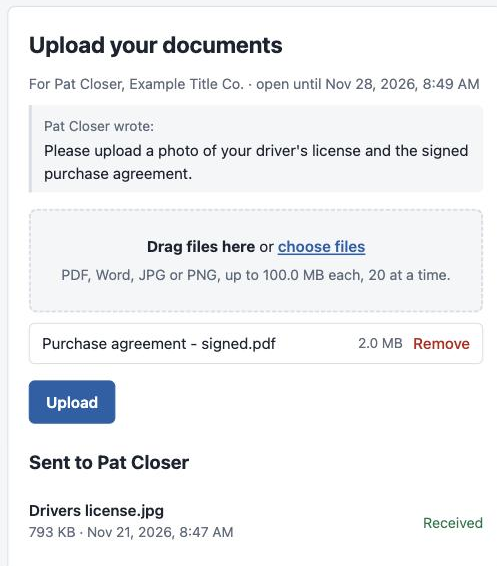
What your customer sees after entering their code. -
We email you when they've uploaded. Each file is checked for viruses first; once it shows
Download on the Request tab, it's ready. A file that fails the check is deleted and shown
as rejected.
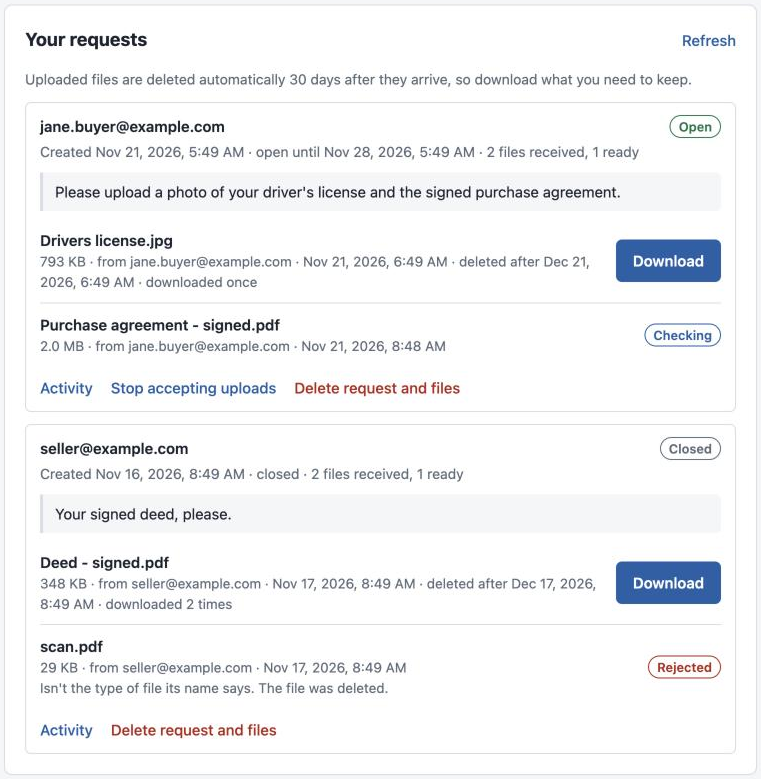
Files show Checking until they pass, then Download.
Customers can upload more than once until the link expires. Use Stop accepting uploads once you have everything, or Delete request and files to remove what they sent. Uploaded files are deleted automatically after 30 days, so save anything you need to keep to your usual file system.
Troubleshooting
- The recipient says the code never arrived.
- Ask them to check their spam or junk folder, and confirm the address you entered is right (it's on your list under Recipients). They can request a new code after 30 seconds, up to 5 times an hour. If the address was wrong, revoke the share and create a new one with the right address.
- The recipient says the link is expired or unavailable.
- The link has expired, been revoked, or used up its download limit. Create a new share. Also check that they used the whole link; some email programs break long links across two lines.
- The recipient says the code doesn't work.
- Codes expire after 10 minutes, and after 5 wrong tries they need a new one. They should use the newest code if they asked more than once.
- My file won't upload.
- Only PDF and Word files (.pdf, .docx, .doc) up to 100 MB can be shared. Word files with macros (.docm) aren't allowed. Save as .docx or PDF instead. For other file types, save or print them to PDF first.
- It says my account doesn't have access.
- Your account hasn't been set up for this app yet. Contact your IT support.
Keeping it safe
- Never put wiring instructions or bank details in a shared document unless your company's procedures say to, and always confirm wire changes by phone.
- Only enter addresses you've confirmed with the client. A link can only be unlocked from those addresses.
- To send the same files to someone else, add them as a recipient or create a new share. Forwarding the link won't work for them, because the code only goes to the addresses you listed.
- If something looks wrong, such as downloads you didn't expect in the activity log, revoke the share and tell your manager.